

The Ahrefs Site Audit does what the name says: it crawls your website and lists the technical problems that stop your pages from ranking as well as they could. We use it on every site we work on. It concentrates on five areas:
1. Finding and fixing crawl errors
2. Improving site speed
3. Improving site structure
4. Fixing broken links and status codes
5. Fixing duplicate content and tags
Audit issue triage matrix: what to fix first when the report says 4,000 errors
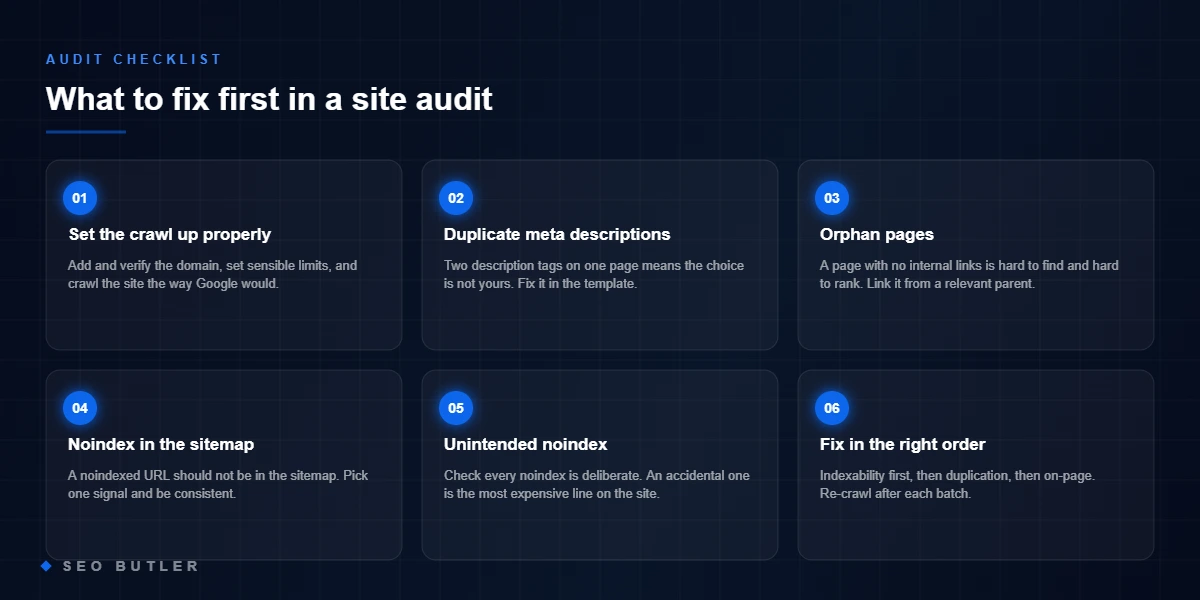
A site audit’s health score treats a broken canonical and a missing alt text as neighbours; your rankings do not. Filter the most common audit findings by real-world urgency and work top-down — this is the order we triage client crawls in.
| Typical audit finding | Urgency | Why this slot |
|---|---|---|
| Noindex / robots block on money pages | Now | Revenue pages invisible — every day is traffic gone |
| Broken internal links & 404 chains from ranking pages | Now | Leaks equity and users from the pages that earn |
| Redirect chains & loops | Now | Each hop sheds signals; loops strand crawlers entirely |
| Canonical pointing to the wrong URL | Now | You are voting against your own page |
| Duplicate title tags across templates | Month | Cannibalisation and CTR loss, fixed once at template level |
| Orphan pages with traffic potential | Month | Pages with no internal links cannot accumulate authority |
| Slow pages flagged in the performance report | Month | Batch by template; chase field data, not lab scores |
| Missing alt text | Batch | Accessibility win; fix during content passes |
| Meta descriptions missing or long | Batch | Google rewrites most anyway — polish the pages that already get impressions |
| Multiple H1s / heading order quirks | Batch | Cosmetic on modern rendering — tidy with other template work |
10 shown. The discipline: an audit is only useful if someone fixes what it finds — in impact order, not report order.
Why is technical SEO important?
Technical SEO is what makes a site easy for search engines to crawl, understand and rank. If there are technical problems in the way, the best content on the internet will not save you, because Google never gets a proper look at it. Get the technical side right and everything else you do for rankings and visibility works harder.
Tools to audit and fix issues
We use a couple of tools to audit a site. They do the first scan and surface the technical errors worth fixing. At the moment those tools are:
- Ahrefs Site Audit
- Inspect (the browser’s inspect command, for checking anything the crawler flags)
Ahrefs Site Audit: setup
Here is how to add a website to Ahrefs Site Audit.
- Go to Ahrefs and click Site Audit
- Click New Project
- Choose Add manually
- In the first field, enter the domain name without the https, e.g. “erkg-blog.com“. Put the same thing in Project Name (it makes the project easier to find later), then click Continue
- Click Continue again (there is no need to verify ownership)
- Turn off Run scheduled crawls, then click Continue
- Leave the next page as it is and click Continue
- Click Finish
The audit takes 30-45 minutes. Once it is done, open the results and work through the issues below.
Multiple meta description tags
Problem: pages with more than one meta description tag.
The meta description gives search engines a short summary of what a page is about. Google sometimes shows it under the page title in the results, and a good one earns more clicks.
Search engines expect one meta description per page. Two of them is confusing, and the one Google picks may not be the one you wanted.
How to fix
Duplicate meta descriptions are nearly always a case of two things trying to do the same job: the theme and the SEO plugin, usually Rank Math. If both of them output a description, you get the “multiple tags” warning.
Fix it by turning off the theme’s meta description output in the theme settings. If the theme has no way to do that, deactivate and remove the Rank Math plugin instead.
If you remove Rank Math, remember it was also generating the sitemap, so you need a replacement. Go to Plugins, search for XML Sitemap Generator for Google and install it. Its settings live under Tools. Go there and note the URL of the new sitemap.
Then open Google Search Console for the site, go to Sitemaps, delete the old sitemap and submit the new URL from XML Sitemap Generator for Google. Search Console now has the current sitemap.
Orphan page(s)
Problem: pages with no internal links pointing to them.
An orphan page is one that nothing else on the site links to. Crawlers can only find it through the sitemap or from an external backlink, and visitors cannot reach it from any other page at all.
How to fix
Orphans are usually “pages” rather than “posts”. Posts show up automatically in their categories; pages only appear where you put them, which normally means the menu.
Add the orphaned pages to the menu, or link to them from somewhere relevant.
Noindex page in sitemap
Problem: a page is in the sitemap and also marked noindex.
A noindex tag tells search engines not to index the page. Listing that same page in the sitemap tells them to come and index it. The two instructions contradict each other.
How to fix
Look at each affected page and decide which instruction was the mistake. Either take the page out of the sitemap or remove the noindex tag.
Noindex page
Problem: not a problem as such, but worth checking for mistakes.
A noindex tag keeps a page out of the search results. That is normal and sensible for things like the sitemap page, the contact page, the about page or a privacy policy.
How to fix
There is no single right answer. Go through the noindexed pages and ask whether each one was meant to be hidden. If you find a guide or a post with content the site needs in the index, remove the noindex tag so Google can index it and send traffic.
Page has links to broken page
Problem: a page links to another page that no longer exists.
These are links, internal or external, that return a 404 (Not Found) or 410 (Gone). Whatever they pointed at is no longer there, so the link leads nowhere.
How to fix
You have three options:
- replace the broken link with a link to a live, relevant page
- remove the link from the affected pages
- set up a 301 redirect to a relevant page or the front page (worth doing when the missing page has link equity, i.e. internal or external backlinks pointing at it)
Hint: for 301 redirects, install the Redirection plugin from Plugins. It is the one by John Godley. Set the redirects up in there.
404 page
Problem: a URL on the site was not found.
A 404 means the URL does not exist. Usually the page was deleted at some point and nobody set up a redirect.
How to fix
Go through the 404 URLs and decide for each one whether to:
- set up a 301 redirect
- set up a 410 Gone
Where the old page had any link equity, we usually keep it with a 301 redirect to:
- another relevant page on the site
- or the front page
If the 404 URL had no value and there is no sensible page to redirect it to, we set a 410 Gone instead. That tells search engines the page has been deleted on purpose and is not coming back.
Pair the crawler’s view with Google’s own. Search Console’s Page indexing report shows what Google actually kept out of the index and why, and the Search Central documentation is the reference for every issue covered above.

How SEO Butler fits in
SEO Butler is a backlink marketplace and content studio in Malta. We run technical SEO, on-page SEO, content creation, off-page SEO and link building on a portfolio of websites of our own across nine markets, which is where the advice on this page comes from. If you need links, the backlink marketplace is where you procure placements on established sites, priced before you order, with the articles written by native speakers. The search engine optimisation page shows how the pieces fit together.
Read about the six SEO services as we practise them, see the markets we build links in, or tell us what you are trying to rank.